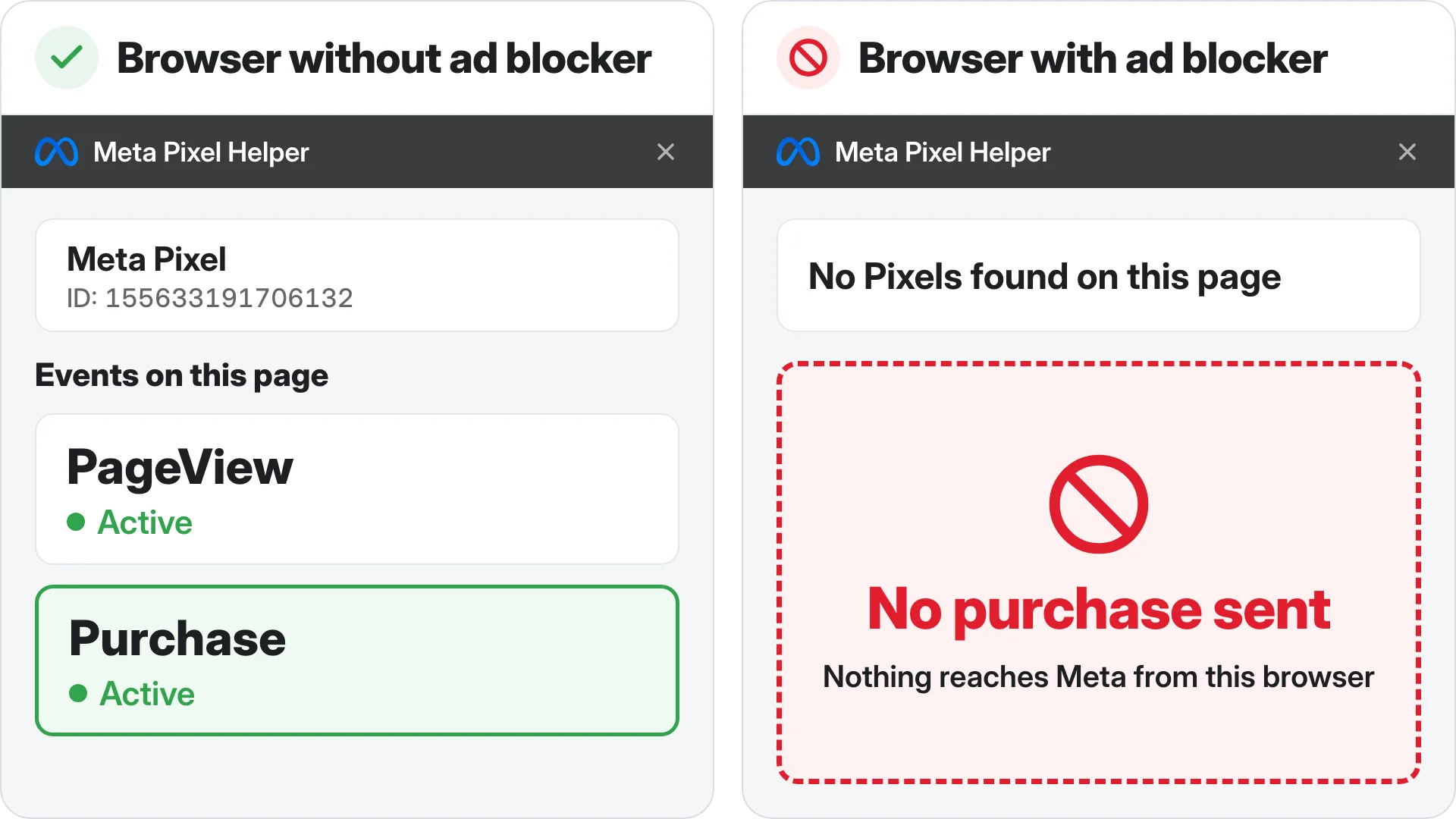
Here's how to use the Meta Pixel Helper to check that your pixel is on your site and firing the right events, what each of its errors means and how to fix it, and what changed with it this year. Then the part it can't show you: the sales from shoppers whose browser blocks the pixel.
The Pixel Helper is the first thing people running ads open when they wonder if their tracking works, and a green icon feels like the answer. But it only shows what happens in your browser, on the page you're looking at. So by the end of this post you'll also know how to check what it can't: whether Meta is actually getting your sales.
What is the Meta Pixel Helper?
The Meta Pixel Helper is Meta's free browser extension for Chrome and Edge that shows whether a page has a Meta pixel on it, which events fire, and any errors those events have.
If you looked for it lately and found something called Meta Ads Data Advisor instead, that's not a different tool. Meta renamed it this year, but it's the same extension, and even my own panel still says Meta Pixel Helper at the top. You can get the Meta Pixel Helper Chrome extension here, and on Edge you install the same one. It also does a lot more than it used to, which I'll get to further down.
So whether you search for the Pixel Helper, the Facebook Pixel Helper or Meta Ads Data Advisor, it's the same free extension under a new name, and this is the one you install.
How to use the Meta Pixel Helper, step by step
Installing it takes a minute. Reading it right is the part that matters, because a pixel can show up as found and still fire the wrong events, fire them twice, or send a purchase with no value.
A lot of advertisers open it on their homepage, see PageView marked Active, and close it. That checks one event on one page, and the event Meta optimizes your ads on, Purchase, happens a few pages later.
- Install it and pin it to your toolbar. If you had the old Pixel Helper and it now shows as deactivated, go to
chrome://extensions/, find it (it's listed as Meta Ads Data Advisor now), toggle it back on and accept the new permissions. - Open your site and click the icon.
- Read the panel. The Meta Pixel ID comes first, so copy it and check it matches the pixel in your Events Manager, because a wrong ID sends your data to someone else's pixel or nowhere. Under it you'll see "Events on this page", with a status next to each event.
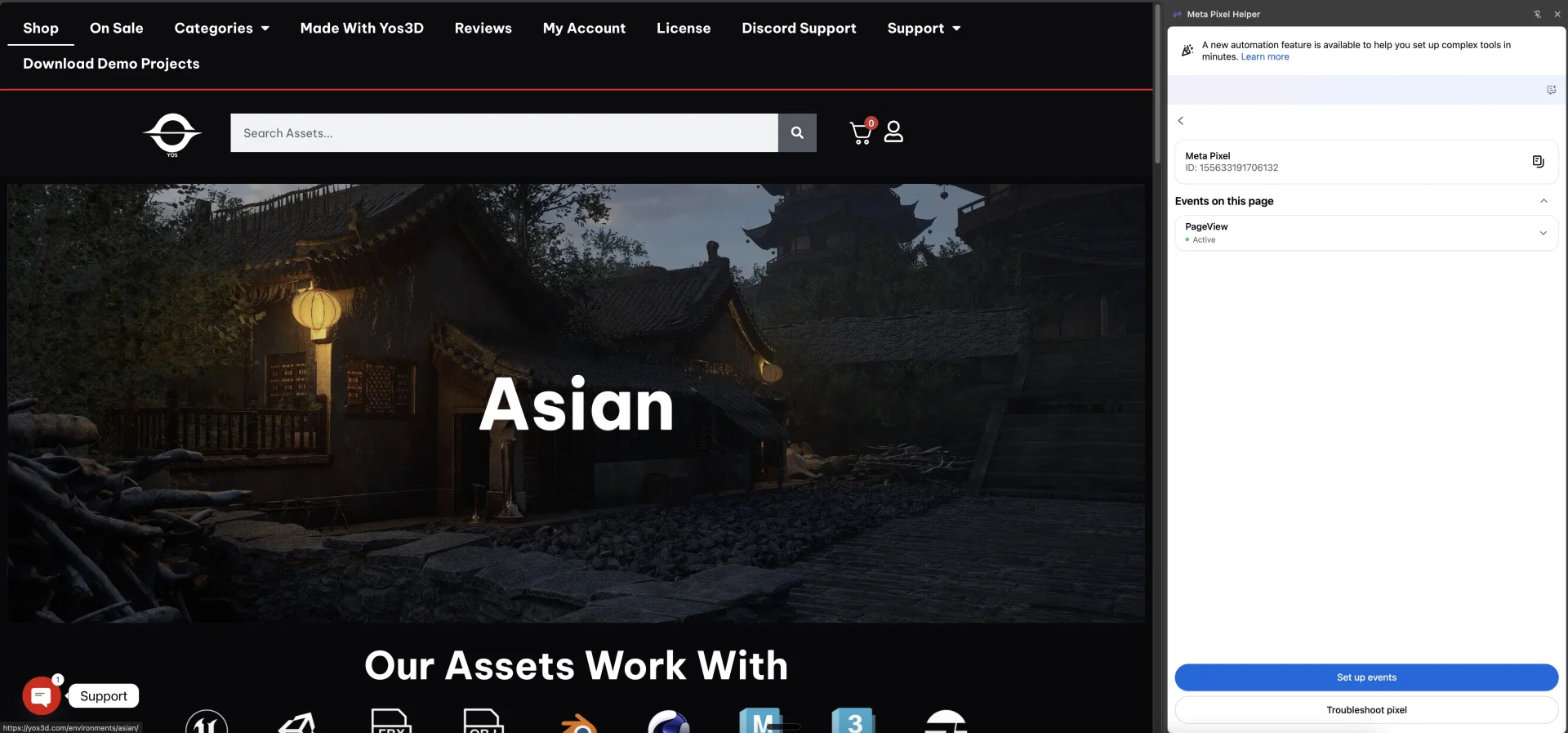
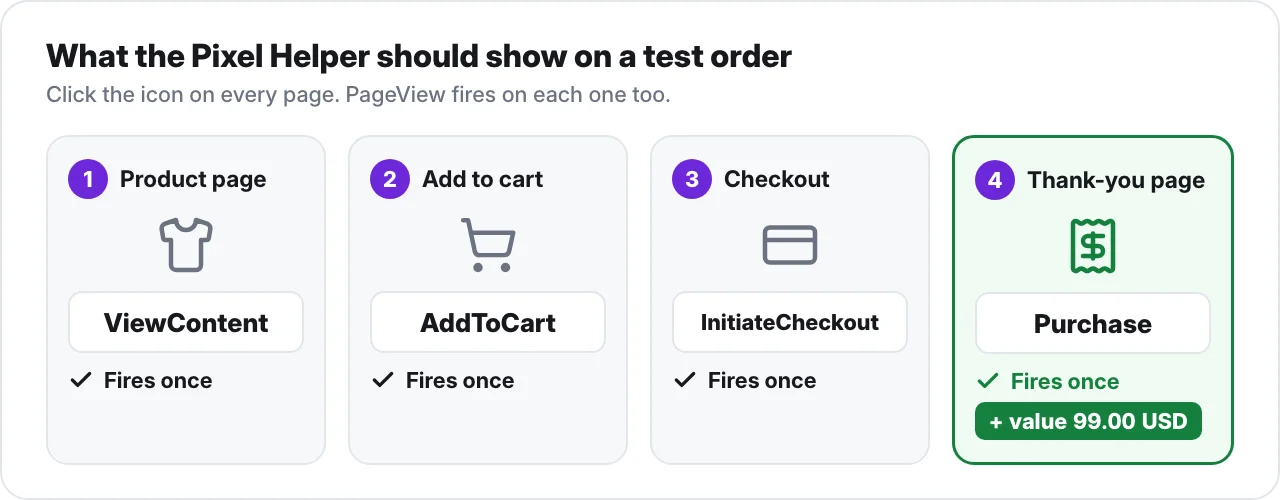
- Walk your funnel the way a shopper would: a product page (ViewContent), add to cart (AddToCart), checkout (InitiateCheckout), then a real test purchase (Purchase), opening the Helper on every one of those pages.
On each page you're checking 2 things. Every event fires once, not twice, and your Purchase carries a value and a currency, like 99 and USD. Without the value, Meta knows somebody bought but not how much they spent.
Events show Active, Inactive, Warning or Error, and the pixel itself shows Active, Warning or Inactive. If an event says Auto-detected, Meta picked it up by itself instead of from your code, which matters further down.
If every event in your funnel fires once, shows Active, and your Purchase carries a value and a currency, your pixel is set up right, at least in your browser.
Common Meta Pixel Helper errors and what they mean
When an event isn't Active, the Helper names the problem. Each of these errors changes what Meta thinks happened on your site, and that changes who it shows your ads to next. These are the errors you'll see, what each one means and how to fix it.
| Error | What it means | How to fix it |
|---|---|---|
| Pixel Did Not Load | The code is on the page but no request went out | Fine if the pixel only fires on a click, otherwise check the code or the tag's trigger |
| Pixel Activated Multiple Times | The same event went out more than once, so it's counted more than once | Remove the duplicate, usually an app and hand-added code both firing |
| Not a Standard Event | Meta doesn't recognise the name, like "Purchased" instead of "Purchase" | Rename it to the standard name |
| Invalid Pixel ID | The ID doesn't match an active pixel | Copy the right ID from Events Manager |
| Encoded Characters | The data is encoded twice, like & | Fix the encoding in your code or tag |
| Pixel Took Too Long to Load | It loaded after the visitor could already leave | Move the base code higher in the page head |
| Pixel Advanced Matching | A placeholder like {{email}} went out instead of the real email | Fix the variable so it fills in |
| Can Not Find Product Catalog / Pixel Not Paired With a Product Catalog | The product IDs don't match a catalog, or the pixel isn't connected to one | Connect the pixel to your catalog (only matters for catalog ads) |
| You Have Opted Out of Tracking | Your own browser is opted out | Nothing, your site is fine |
| Data Processing Parameters Sent | Informational, Limited Data Use is being sent | Nothing, unless you didn't mean to set it |
Events Manager flags a few more under Diagnostics, and the Data Advisor surfaces these too.
| Error | What it means | How to fix it |
|---|---|---|
| Missing or invalid currency | The currency is empty or isn't a real code | Use a 3-letter code like USD |
| Missing value | Purchase fired with no order total | Send the order total with Purchase (a very common mistake) |
| Value unusually high or low | The value doesn't look like a real order | Usually cents sent as dollars, or tax and shipping added twice |
| Duplicate events | The same event is coded and also picked up as an automatic event | Turn one of them off |
| Mismatched value or currency between pixel and CAPI | Browser and server send different numbers for one order | Send the same value and currency from both |
| Invalid email | The email is empty, malformed or hashed wrong | Send a real email, formatted properly |
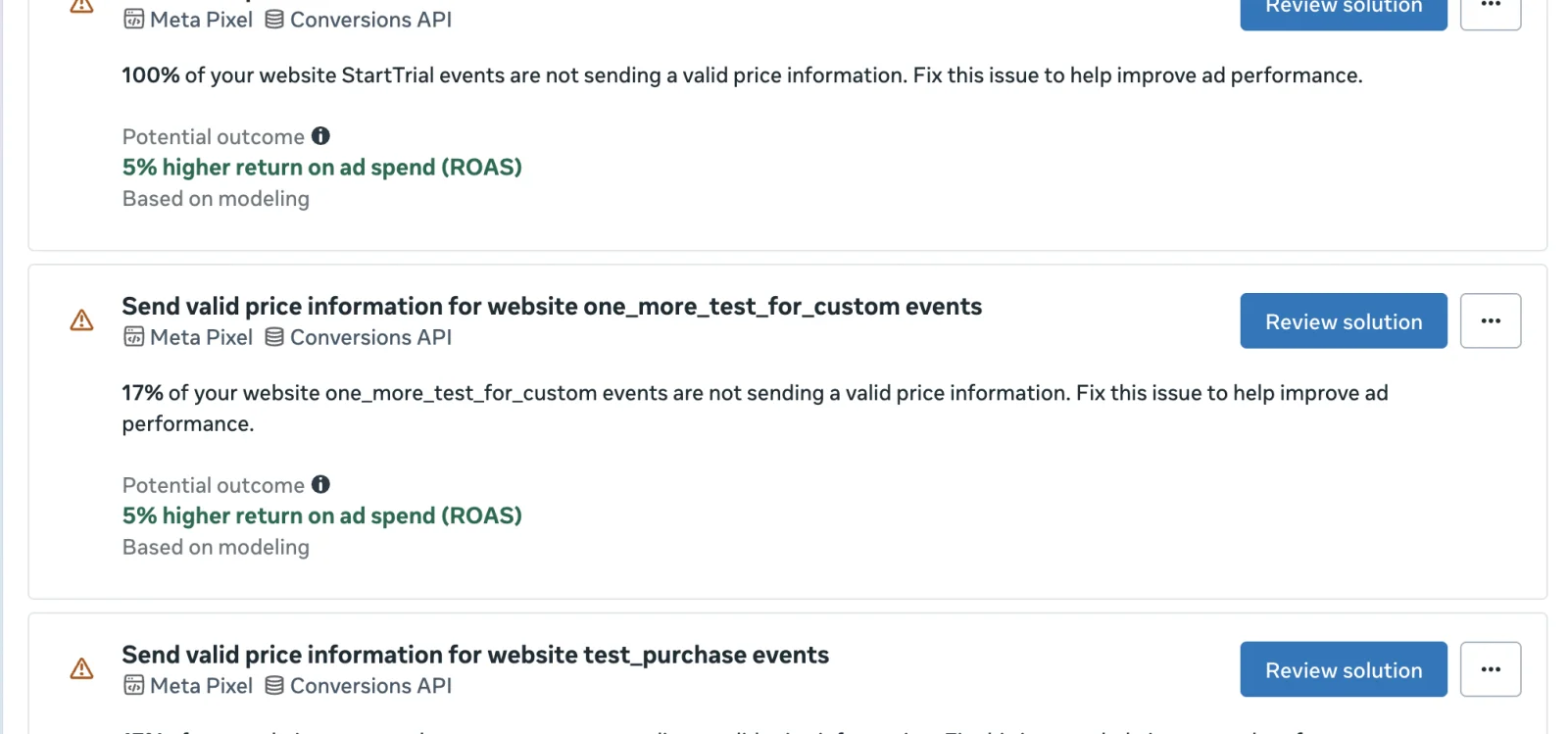
Almost every error here is one of 3 things: the event fires twice, it fires under the wrong name, or it fires without the value, and Meta optimizes on whatever it receives.
What changed: the Pixel Helper is now Meta Ads Data Advisor
This year the Pixel Helper stopped being just a checker, and if you let the new version set things up on a store that already has events, it can count the same sale twice.
On top of finding your pixel, it can now:
- set up the pixel and the Conversions API through Google Tag Manager
- connect a Shopify or WooCommerce store
- send CRM data from Salesforce or HubSpot
- connect catalogs and turn on Advanced Matching
- flag broken events and apply fixes once you approve them
- write an audit report
Checking a pixel still works without logging in, but setting anything up needs a Facebook login, admin access to your ad account and to the platform you're connecting, and your ad blocker off. It also asks for more permissions than it used to, to "Read and change all your data on all websites" and debugger access. On the Chrome Web Store it sits at 2.0 out of 5 from about 1,300 ratings.
The part to watch is that new pixels set up through it have automatic events pre-selected, so Meta tries to detect things like a purchase on its own. If your store already sends a coded Purchase, that's 2 setups reporting the same order, which is the duplicate events row in the table above.
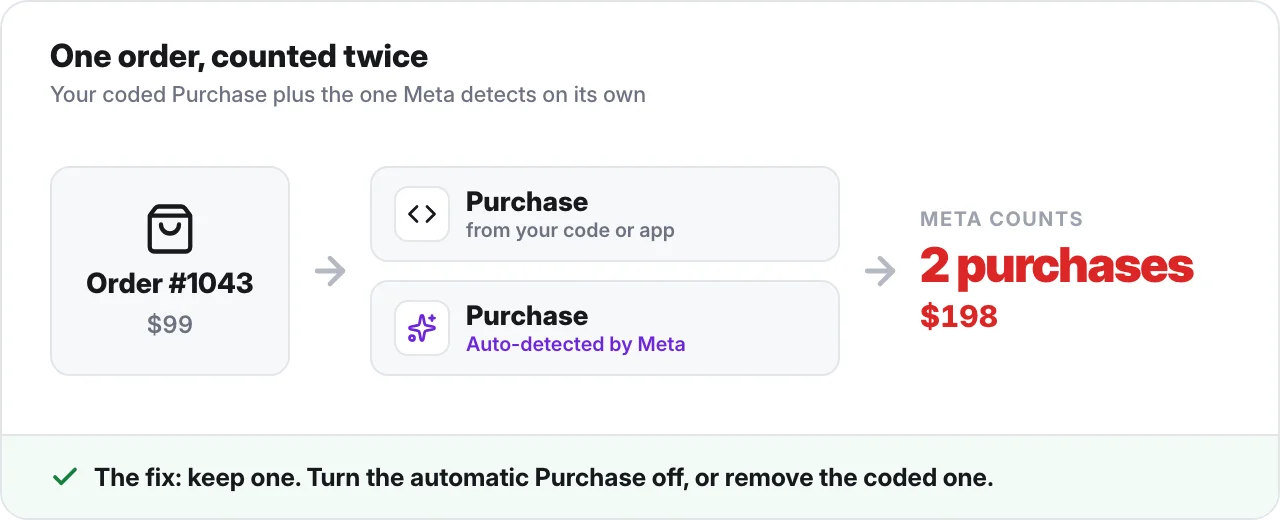
My take is it's fine for checking, which is what most people install it for anyway.
So use it to check your pixel, and before you let it set anything up on a store that already has events coded, look at exactly what it turns on.
What the Meta Pixel Helper can't see
Everything above checks your pixel in your browser, and that's the catch, because the sales that go missing happen in your shoppers' browsers, not yours.
Say you've done all of it. The Helper is green, every event says Active, so you decide tracking is fine and go back to blaming the creative. But the event list in the Pixel Helper only shows browser events firing on the page you're on, in the browser you're using. So here's the same store page, with the same pixel, and an ad blocker switched on.
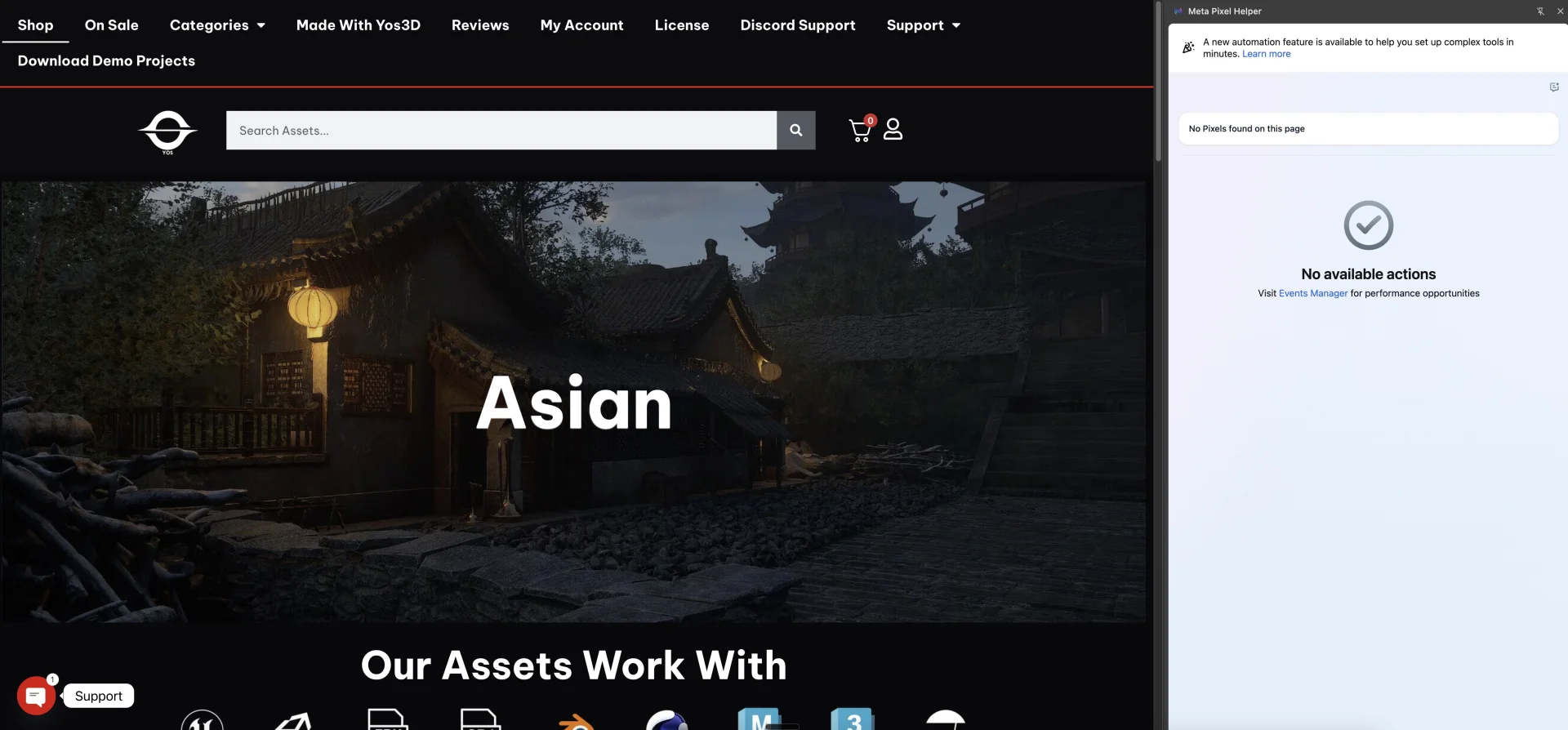
The Helper now says No Pixels found on this page, and the Network tab shows why.
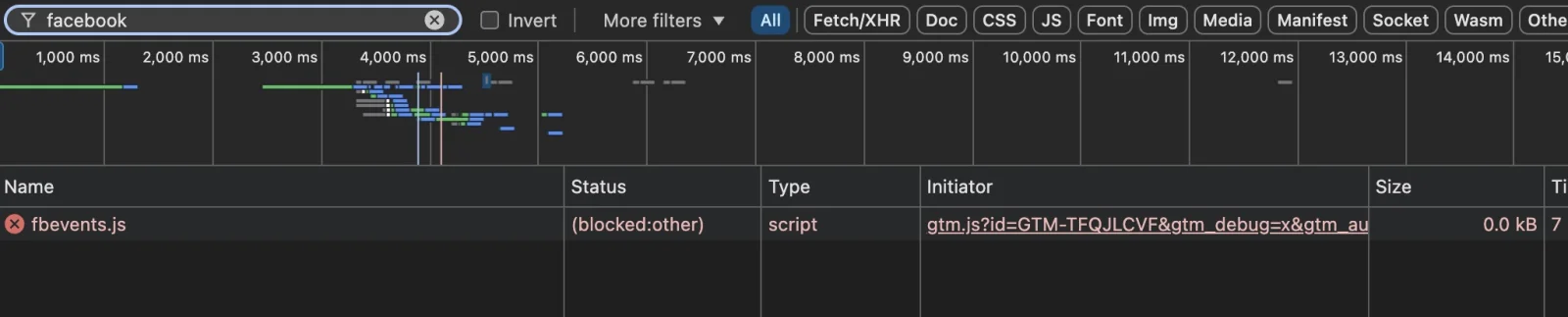
The file that runs the pixel, fbevents.js, never loaded, and its status says (blocked:other). So that browser sends Meta nothing, no PageView, no AddToCart, no Purchase. That's how a real shopper with an ad blocker looks to Meta, and Safari's tracking limits cut down what a lot of the others send too.
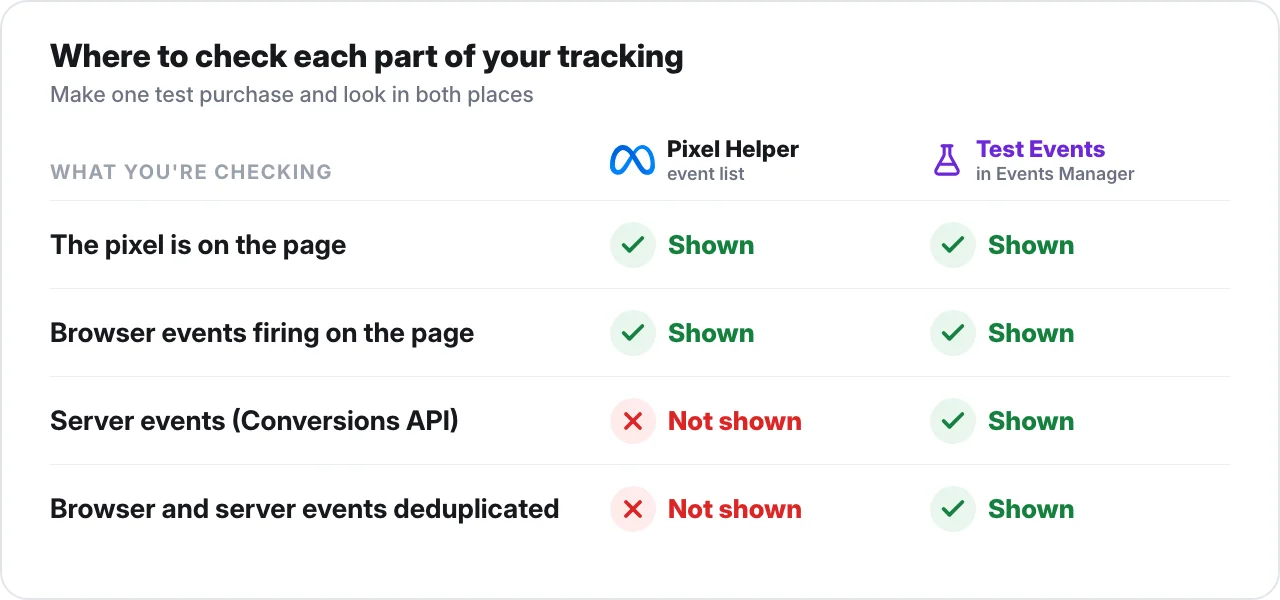
What the event list never shows you:
- server events, the ones your Conversions API sends
- whether Meta deduplicated the browser and server copies of the same event
- whether the purchase from a blocked visitor reached Meta at all
People treat a green Pixel Helper as the test of their tracking, and in my opinion it's the one browser in the world that's guaranteed to work, because it's yours. It's the one you set the pixel up on, usually with your ad blocker off. So all it tells you is that the code is on the page, not that Meta got the sale from the shopper with an ad blocker or the one on Safari.
A green Pixel Helper proves the pixel works in your browser, and nothing more than that.
Where to check instead: Test Events
To see whether the sale reached Meta from the server too, and whether Meta counted it once, you have to leave the extension. Open Events Manager, open your dataset (that's your pixel), go to Test Events and make a test purchase.
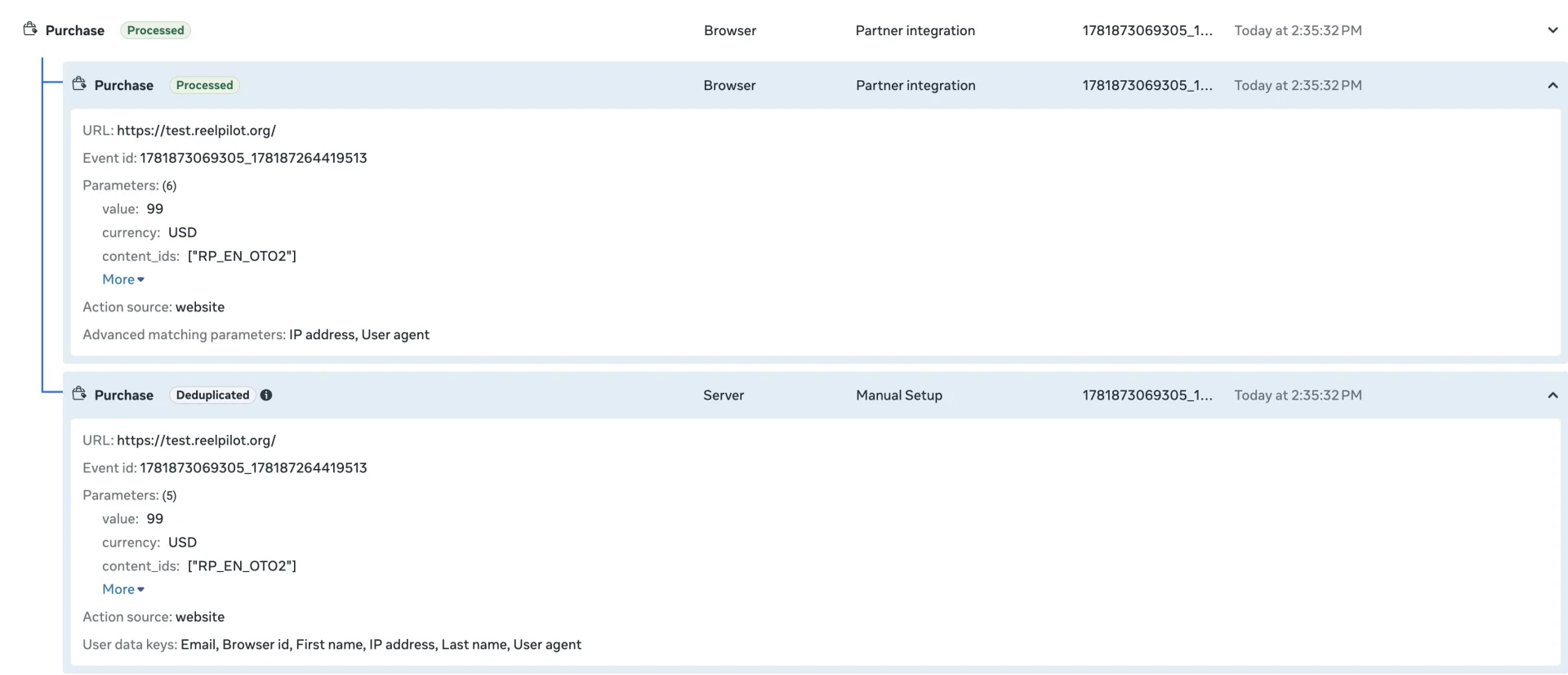
This is one Purchase, 99 USD, arriving twice with the same event ID. The browser copy says Processed and the server copy says Deduplicated, which is what a healthy setup looks like: both sides sent it, and Meta counted it once.
Now look at what each side carried. The browser side only had the IP address and user agent, while the server side had the email, browser ID, first and last name, IP address and user agent. That's what Meta matches the buyer on, and it needs that sent back so it can go find more people like them.
A broken one looks different: a Purchase from the browser and nothing from the server, or 2 Purchases where neither says Deduplicated. I went through how CAPI and deduplication work here if you want the longer version.
TrueMetriks sends the purchase to Meta from the server, from the order itself, so the sale still gets there when the shopper's browser is blocked (here's how that compares to the pixel on its own), and our Chrome extension shows your real ROAS right inside Ads Manager.
If your test purchase shows up from both the browser and the server with the same event ID, and one of them says Deduplicated, Meta got the sale and counted it once.
Meta Pixel Helper FAQ
What is the Meta Pixel Helper?
The Meta Pixel Helper, also called the Facebook Pixel Helper, is Meta's free extension for Chrome and Edge. It shows whether a page has a Meta pixel on it, which events fire, and any errors those events have.
Is the Meta Pixel Helper the same as Meta Ads Data Advisor?
Yes. Meta renamed the Meta Pixel Helper to Meta Ads Data Advisor this year and added setup features, but it's the same extension. The Facebook Pixel Helper is an older name for it too.
Why does the Pixel Helper say no pixel found?
Either the pixel isn't on that page, or something in your browser stopped it from loading, usually an ad blocker. Turn the blocker off, reload, and you'll know which one it is.
Does the Pixel Helper show Conversions API events?
The event list in the Pixel Helper only shows browser events firing on the page. To see server events and deduplication, use Test Events in Events Manager.
Why is my pixel firing twice?
Usually because 2 setups are sending the same event, like an app and hand-added code, or a coded event plus an automatic one. Keep one and remove the other. If it's a browser and server pair, they need the same event ID so Meta counts it once.
Is there a Pixel Helper for Safari or Firefox?
No. The Pixel Helper is only for Chrome and Microsoft Edge.
How do I test my pixel without the Pixel Helper?
Use Test Events in Events Manager, which shows your browser and server events side by side and whether Meta deduplicated them.
So is Meta getting your sales?
Anyways, the Pixel Helper is the right first check, and it's worth running on every page of your funnel, but it only ever tells you what happened in your browser. Green there means the code is on the page, not that Meta got the sale, and one test purchase in Test Events tells you which one you have.